2026 Grok Imagine Video 1.5 on Kinovi: Five Options, from Creative Films to Product Ads
Five real video examples with original prompts and reference images, plus Grok Imagine Video 1.5 and Lite specifications, pricing, and FAQs on Kinovi.
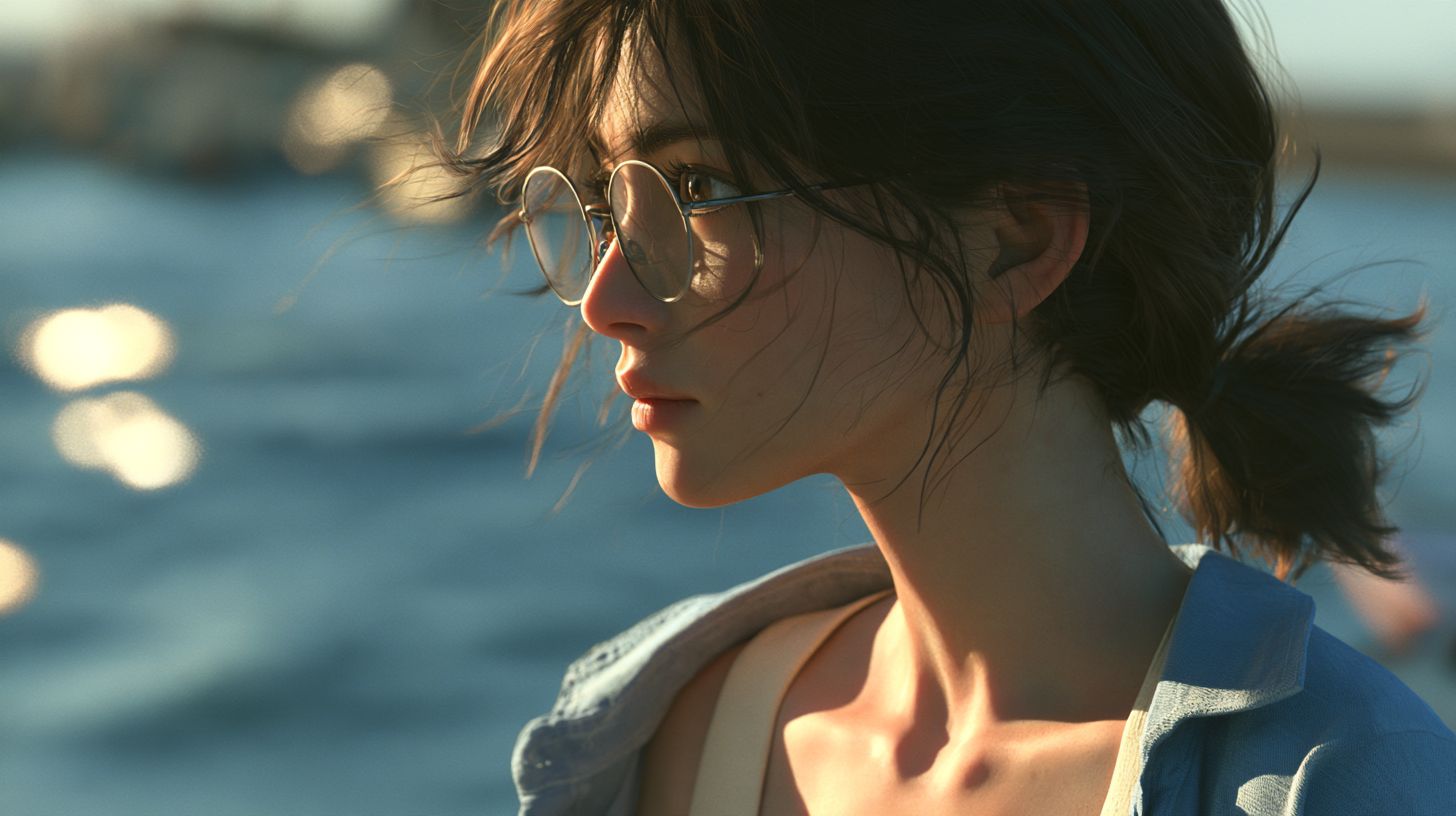
At a glance: A flower shop above the clouds, a photograph that becomes a moving beach, and a watch commercial assembled from three visual references: the Grok Imagine Video 1.5 family is available on Kinovi through five standard and Lite options. This guide brings together five existing videos, their input images, complete prompts, specifications, and current prices to help you choose a starting point for your own project.
An AI video project often begins with the material you already have. A written idea needs a world built around it. A photograph needs motion. Separate product, display, and location images need to become a single shot.
The examples below follow this order: standard text-to-video, standard image-to-video, standard reference-to-video, Lite text-to-video, and Lite image-to-video. Each illustrates a different creative task. Their scenes, durations, and inputs differ, so this is a showcase rather than a controlled ranking of standard versus Lite.
1. What does Grok Imagine Video 1.5 bring to the workflow?
xAI's launch announcement emphasizes improvements to motion, physics, and audio, including more coherent movement and sound effects, ambience, and dialogue that better match the action. These are the provider's descriptions; the examples below show what happened in specific creative tasks. Official announcement.
On Kinovi, the five options span three input modes and two versions:
- Text-to-video: Build a scene from a written description, whether it is a concept shot, a story opening, or a promotional idea.
- Image-to-video: Begin with an existing image. The standard option also accepts an ending frame; Lite uses a single starting image.
- Reference-to-video: Use multiple images to specify a character, product, or environment while composing a new shot. This mode is currently offered through the standard option on Kinovi.
Choosing between standard and Lite involves both price and features. Lite has lower listed rates. Requirements such as multiple visual references or an ending frame should guide your choice of input mode before the version name does.
2. Specifications and current pricing
The following information was checked against Kinovi's model pages on October 21, 2026. Each option links to its detail page.
| Option | Input | Duration | Output resolutions | Key distinction |
|---|---|---|---|---|
| Standard text-to-video | Text | 1–15 seconds | 480p / 720p / 1080p | Build scenes from text |
| Standard image-to-video | Starting image; optional ending image | 1–15 seconds | 480p / 720p / 1080p | Up to 720p with an ending image |
| Standard reference-to-video | 1–7 reference images and text | 1–15 seconds | 480p / 720p | Combine visual references |
| Lite text-to-video | Text | 1–15 seconds | 480p / 720p / 1080p | Lower listed rates |
| Lite image-to-video | One starting image; optional text | 1–15 seconds | 480p / 720p / 1080p | Animate a single image |
All five options support an audio track and publish a 4,000-character prompt limit. Text-to-video and reference-to-video support multiple aspect ratios. Single-image animation follows the input image and the option's framing behavior; the standard image-to-video aspect-ratio parameter is used only when an ending image is provided.
The same output-resolution label does not imply the same rendering process. xAI's current documentation describes standard text-to-video and image-to-video as supporting native 1080p, while Lite reaches 1080p by upscaling 720p. Official video documentation.
Rates per second of generated video
All amounts below are USD per output-video second, not per second spent waiting for a result.
| Option | 480p | 720p | 1080p |
|---|---|---|---|
| Standard text-to-video | $0.0501 | $0.0878 | $0.1567 |
| Standard image-to-video | $0.0501 | $0.0878 | $0.1567 |
| Standard reference-to-video | $0.0501 | $0.0878 | Not supported |
| Lite text-to-video | $0.0125 | $0.0188 | $0.0878 |
| Lite image-to-video | $0.0125 | $0.0188 | $0.0878 |
For example, at the current 720p rates, an eight-second standard clip is 8 × $0.0878 = $0.7024; an eight-second Lite clip is 8 × $0.0188 = $0.1504. These are illustrative calculations, not the actual invoices for the clips below. The price relationship changes by resolution, so a single savings ratio should not be applied to every tier.
The standard text-to-video and image-to-video pages label their rates Preview test pricing. Check the amount displayed at submission and the applicable failure/refund terms for the chosen option.
Grok Imagine Video 1.5: pricing across platforms
This comparison covers standard Grok Imagine Video 1.5 only, excluding Lite and older models. Checked on October 21, 2026. Resolution columns show USD per output-video second, using public usage-based rates without membership conversions, bonus credits, or subscription discounts. Pricing sources are listed below the table.
| Platform | 480p | 720p | 1080p | Additional input-image fee | Pricing scope |
|---|---|---|---|---|---|
| Kinovi | $0.0501 | $0.0878 | $0.1567 (text/image) | Not itemized on the page; check at submission | Text and image; reference-to-video up to 720p |
| Kie | ≈ $0.012 | ≈ $0.0225 | Public rate unverified | Not itemized on the page; check at submission | 1.5 Preview rates published on the image-to-video page |
| Higgsfield | $0.08 | $0.14 | $0.25 | Separate charge unverified | 1.5 API model-family rates; see mode qualifications below |
| fal | $0.08 | $0.14 | $0.25 (text/image) | $0.01 per input image | Text and image; reference-to-video up to 720p |
| Segmind | $0.108 | $0.189 | $0.3375 (text/image) | $0.0135 per input image | Text and image; reference-to-video up to 720p |
| WaveSpeed | $0.08 | $0.14 | $0.25 (text/image) | Single-image mode: $0.01/request; reference mode: $0.01/image | Text and image; reference-to-video up to 720p |
| xAI official | $0.08 | $0.14 | $0.25 (text/image) | $0.01 per input image | Text and image; reference-to-video up to 720p |
Pricing sources: Kinovi · RunningHub · Kie · Higgsfield · fal · Segmind · WaveSpeed · xAI official
Conditions that affect the comparison:
- Kinovi: Standard text-to-video and image-to-video use the listed Preview test pricing. Reference-mode rates are also available on the Kinovi reference-to-video page. An image fee that is not itemized should not be assumed to be zero.
- RunningHub: The catalog lists $0.08/s for the
xai/grok-imagine-video-v1.5/.../stableofficial stable routes, without resolution-specific rates. That amount cannot be applied to every tier. Separatexai/grok-imagine-v1.5/...economy routes show $0.03/s; their resolution pricing and corresponding capabilities remain unverified, so they are noted separately rather than entered as tier prices. - Kie: The page identifies
grok-imagine-video-1-5-previewand lists 2.4 and 4.5 credits/s for 480p and 720p. The table uses the page's approximate dollar equivalents without bonus credits. Although 1080p appears as an option, its price was not verified; rates from other models are not substituted. Check the Preview designation and each platform's service conditions separately. - Higgsfield: These are public API model-family rates, not creator-subscription conversions. The page illustrates pricing with one-second clips at 480p/720p and 15-second clips at 1080p. This does not establish identical conditions for every duration, reference mode, or additional input.
- Modes and extra charges: Reference-mode resolution limits and image fees are documented on the fal reference-to-video, Segmind reference-to-video, and WaveSpeed reference-to-video pages. The Segmind text-to-video pricing page has conflicting amounts in its table and explanatory prose; this comparison uses the explicit pricing table. Confirm the charge before submitting.
To estimate a total, add disclosed input fees to the video-generation charge. For example, xAI's official price for an eight-second, 720p clip with one input image is 8 × $0.14 + $0.01 = $1.13. Text-only generation has no input-image charge. “Unverified” does not mean “unsupported” or “free.” These figures are budgeting references; the price and service conditions shown at submission take precedence.
3. Five examples, in model order
Each example includes the supplied video, input images where applicable, and the original English prompt. Dialogue and timing instructions inside a prompt describe the intended output; they are not a verbatim transcript of the generated audio. Visual comments are based on sampled frames, and file details come from media metadata. No word-level speech or lip-sync measurement was performed.
| Order | Option | Example | Approximate file duration | File dimensions |
|---|---|---|---|---|
| 1 | Standard text-to-video | Flower shop above the clouds | 15 seconds | 848 × 480 |
| 2 | Standard image-to-video | Entering a beach photograph | 6 seconds | 848 × 480 |
| 3 | Standard reference-to-video | Watch commercial | 8 seconds | 752 × 416 |
| 4 | Lite text-to-video | Moon laundromat | 8 seconds | 848 × 480 |
| 5 | Lite image-to-video | Fashion portrait | 15 seconds | 736 × 400 |
These are the received files' dimensions, not the maximum capabilities of the models or proof of all original submission settings. All five files are 24 fps and contain an audio track.
1. Standard text-to-video: a flower shop above the clouds
There is no starting image or reference asset. The concept begins as text: a high-rise terrace at blue hour, a flower shop above the clouds, warm practical lights, and a florist arranging a flower. The prompt also specifies an on-camera line, a glowing flower, and a final camera move that reveals the wider setting.
Mode: Standard text-to-video
Input: Text only; no reference images.
File: approximately 15 seconds · 848 × 480 · 24 fps · audio track present
Example video
Original generation prompt
Create a 15-second, 16:9 cinematic promotional film with photorealistic materials and one continuous shot. A boutique flower shop occupies a high-rise terrace above a sea of clouds at blue hour. Small amber lights illuminate a wooden workbench, plain ceramic vases, and ivory flowers. Soft foreground petals partly conceal the view. Only a hint of the clouds and distant city lights is visible at first; save the wide reveal for the ending.

The florist is an adult East Asian woman around 28, with short dark hair, a smoky-gray linen apron, and a cream shirt. Her manner is calm and confident. From 0 to 2 seconds, the camera slides gently past the foreground petals. She places one ivory flower into a vase. Its center begins to emit a subtle warm glow, no brighter than a small night-light, casting believable light on her fingertips. The flower retains its physical botanical shape; it does not dissolve or become particles.

From 2 to 12.5 seconds, settle into a steady eye-level medium shot with her face and mouth clearly visible. Looking into the lens, she speaks in warm, clear English: “This flower shop above the clouds began as words. I brought it to life with Grok one point five text-to-video on Kinovi.” She briefly glances at the flower, then returns her gaze to the camera. All speech comes directly from the visible woman, with accurate lip sync and natural pauses, not from an off-screen narrator.

From 12.5 to 15 seconds, after the dialogue, slowly pull back to reveal the cloud-filled skyline beyond the terrace. Keep the florist and shop within the composition and settle on a quiet, complete final image.

Soft side lighting, realistic skin, tactile wood and linen, restrained deep-blue and warm-gold color contrast. The glowing flower center is the only close-range magical effect. Clear voice, a delicate stem-against-ceramic sound, faint high-altitude wind, and a very quiet atmospheric music bed beneath the dialogue. No subtitles, titles, readable signs, logos, or added text. Avoid frantic cuts, exaggerated acting, heavy bloom, floating particles, and complicated hand gestures.
What the output shows
The cloudscape is already visible at the opening. The florist places the glowing flower in a vase, faces the camera during the middle section, and remains in view as the camera pulls back to reveal more of the workbench and shop. Cool blue surroundings and the warm flower establish a clear visual focus.
The result does not follow every detail literally. The prompt saves the wide cloud reveal for the ending, but much of the backdrop is visible from the start. The glow also extends across the petals rather than staying inside the flower center. The broad creative idea comes through, with deviations in the reveal and lighting instructions.
Where this approach fits
A useful direction for promotional concepts, imagined locations, and brand-story shots. Organizing a prompt into setting, action, dialogue, and final composition makes the result easier to evaluate.
2. Standard image-to-video: entering the beach inside a photograph
This example supplies a clear beginning and destination: a photographer beside an easel in the starting image, and a sunset beach in the ending image. The task is to connect those spaces, animate the waves inside the photograph, and move the camera into the coastal scene.
Mode: Standard image-to-video
Input: The supplied frame pair is shown below: the studio portrait as the starting frame and the sunset coast as the ending frame.
File: approximately 6 seconds · 848 × 480 · 24 fps · audio track present
Example video
Input images
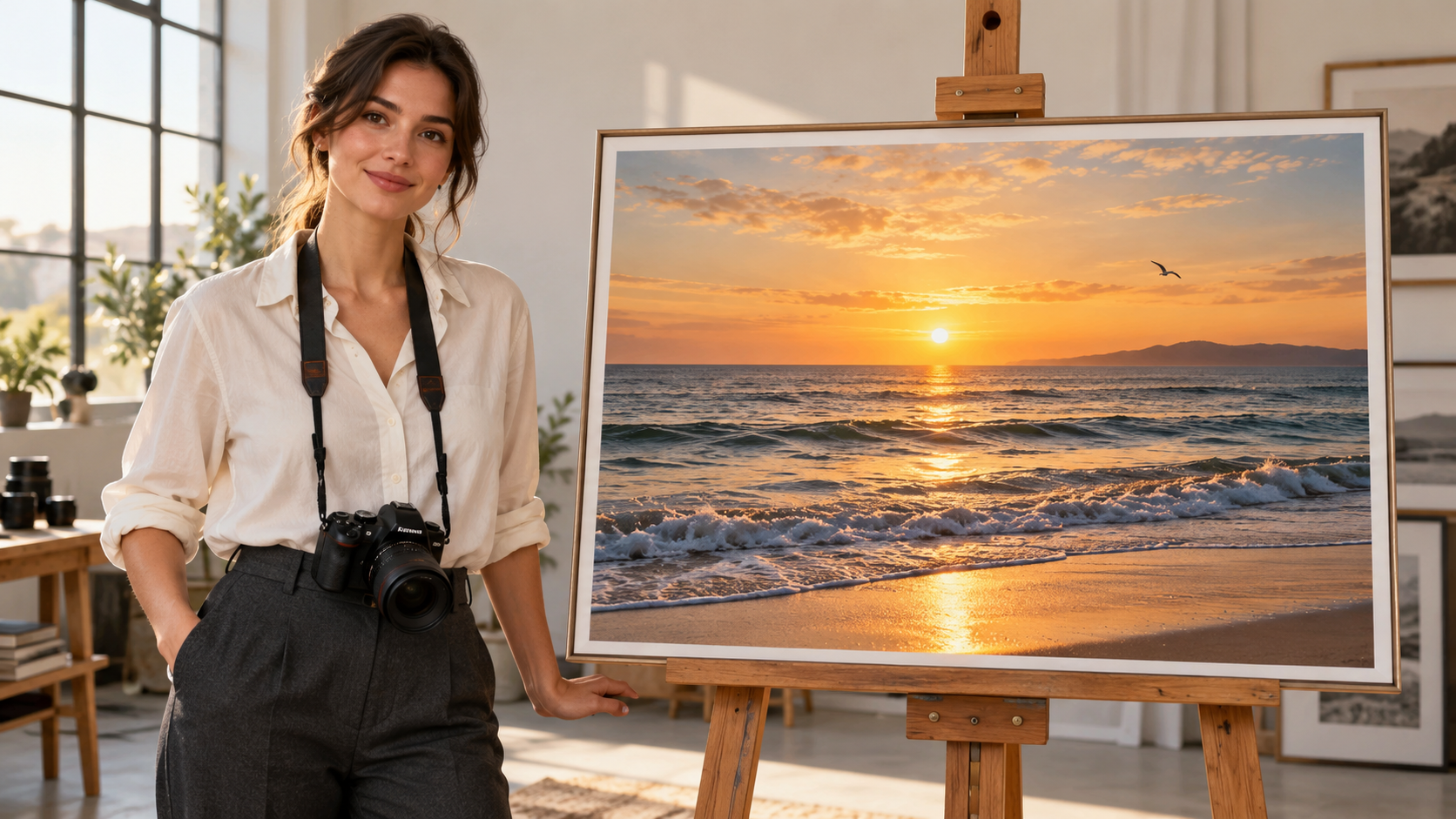
Starting frame: photographer and framed seascape

Ending frame: sunset coast
Original generation prompt
Photorealistic cinematic style, set in a modern photography studio. A young adult female photographer stands beside an easel displaying a photograph of a beach at sunset. She looks at the photograph, then turns toward the camera and smiles. She speaks in English:
“Let’s bring this photo to life! I made this on Kinovi using the grok-imagine-video-1.5 image-to-video model.”
As she gently gestures toward the photograph, the camera slowly pushes in. The waves within the photograph begin to roll naturally, sunlight shimmers across the water, and a seagull flies through the scene. The photograph’s frame gradually moves out of view until the moving seaside scene fills the entire screen. Natural gestures, accurate lip synchronization with the English dialogue, soft lighting, and a seamless transition. Clear voice audio accompanied by gentle ocean sounds. No added subtitles.
What the output shows
In the approximately six-second output, the photographer smiles, moves her mouth, and gestures toward the picture. The camera approaches the frame while the waves change; by the end, the studio and picture frame have left view and the seaside fills the screen. The transition between the two supplied compositions is visible in the result.
This clip illustrates frame-to-frame visual continuity. The prompt also requests an English line, but mouth movement alone does not establish that the entire sentence was delivered or synchronized word for word. With such a short runtime, dialogue completion should be checked separately.
Where this approach fits
A useful approach for photo animation, travel visuals, and transitions into a pictured world. Define the intended connection between the two frames, and leave enough time for both camera movement and speech.
3. Standard reference-to-video: combining a watch, pedestal, and room
Reference-to-video can bring separate product, display, and location assets into one scene. This watch concept assigns a role to each image, then requests a dial close-up, a view around the case, and a wider finishing shot.
Mode: Standard reference-to-video
Input: Upload in this order: IMAGE_0 watch, IMAGE_1 marble pedestal, IMAGE_2 interior. The prompt labels refer to that same order.
File: approximately 8 seconds · 752 × 416 · 24 fps · audio track present
Example video
Input images
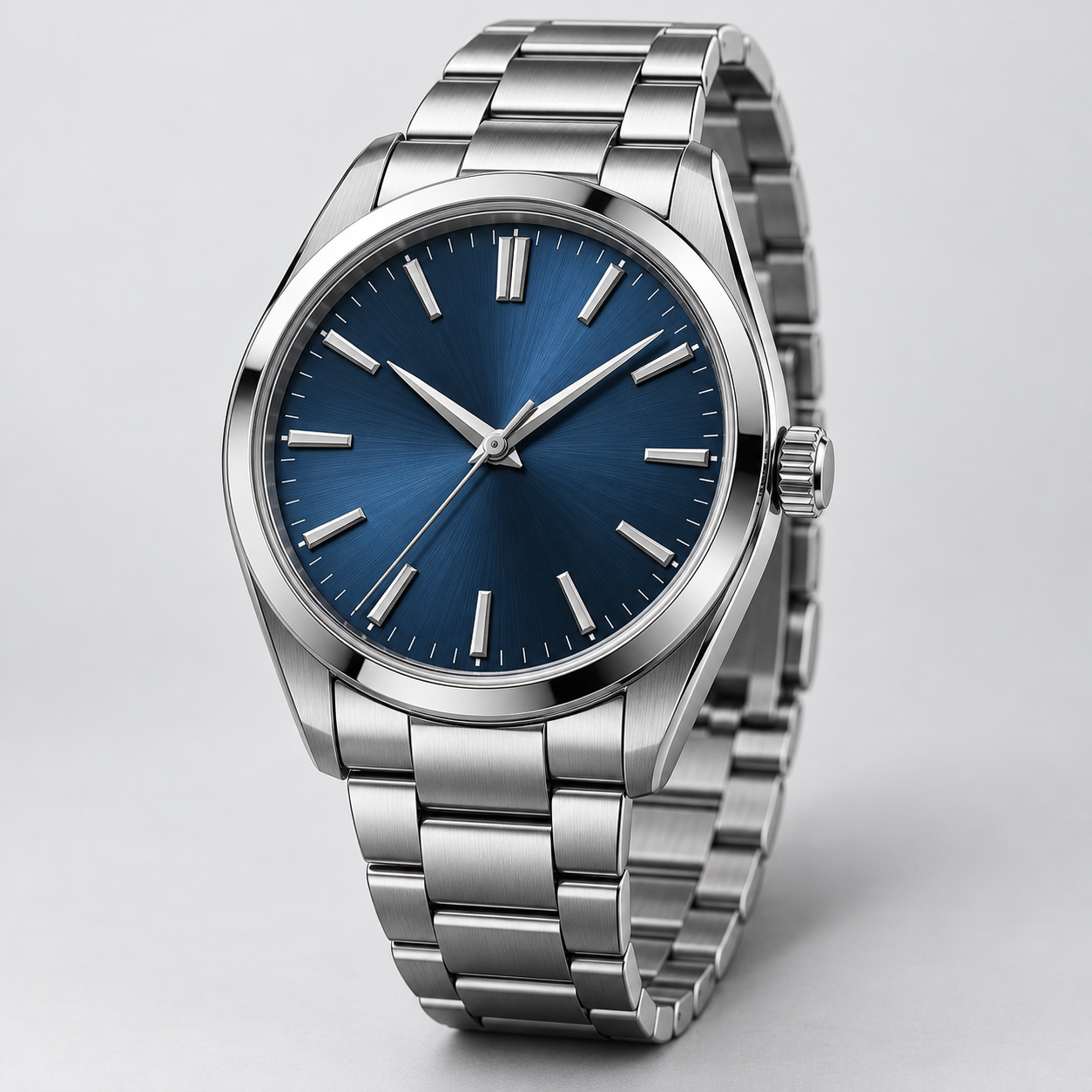
IMAGE_0: silver case and blue dial
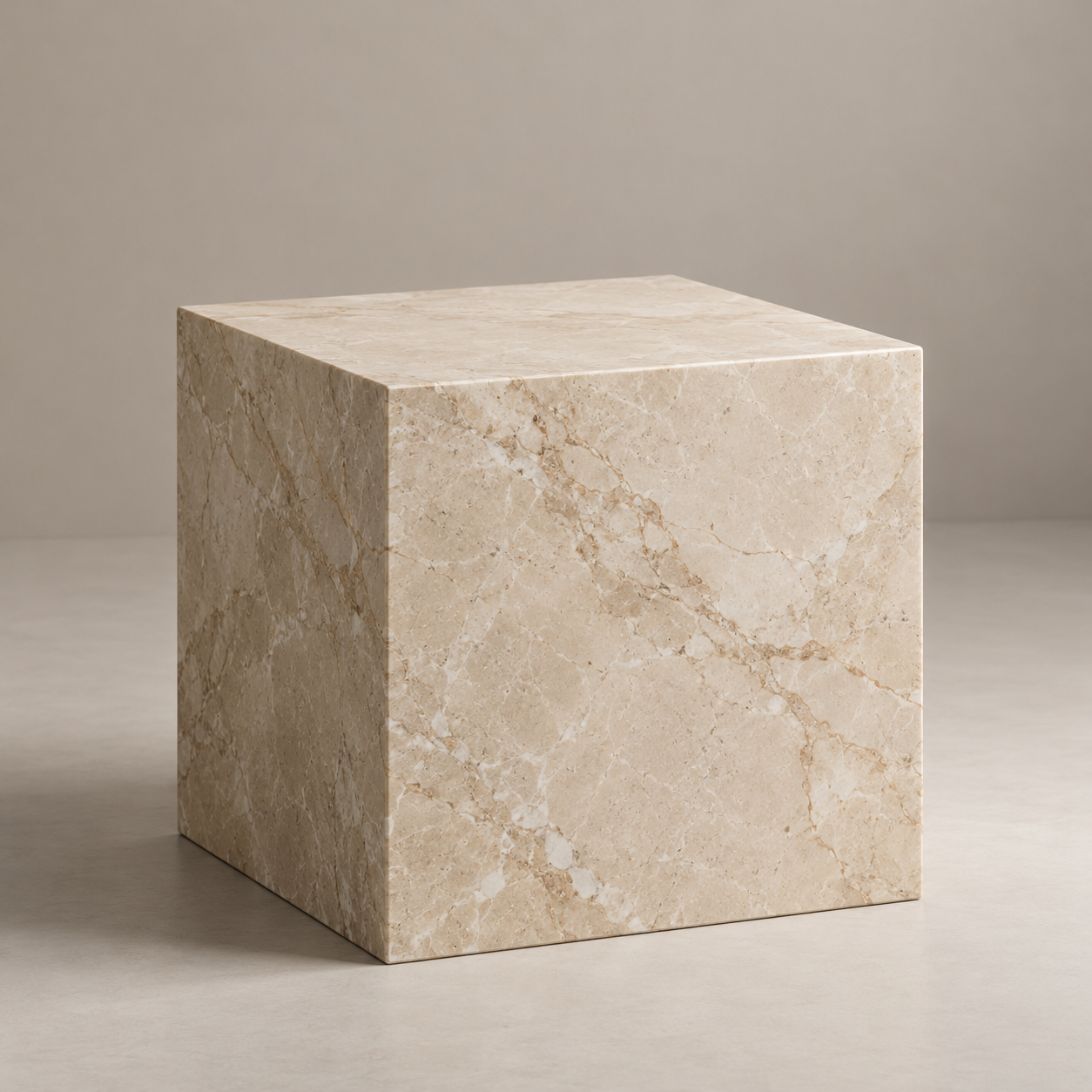
IMAGE_1: beige marble pedestal
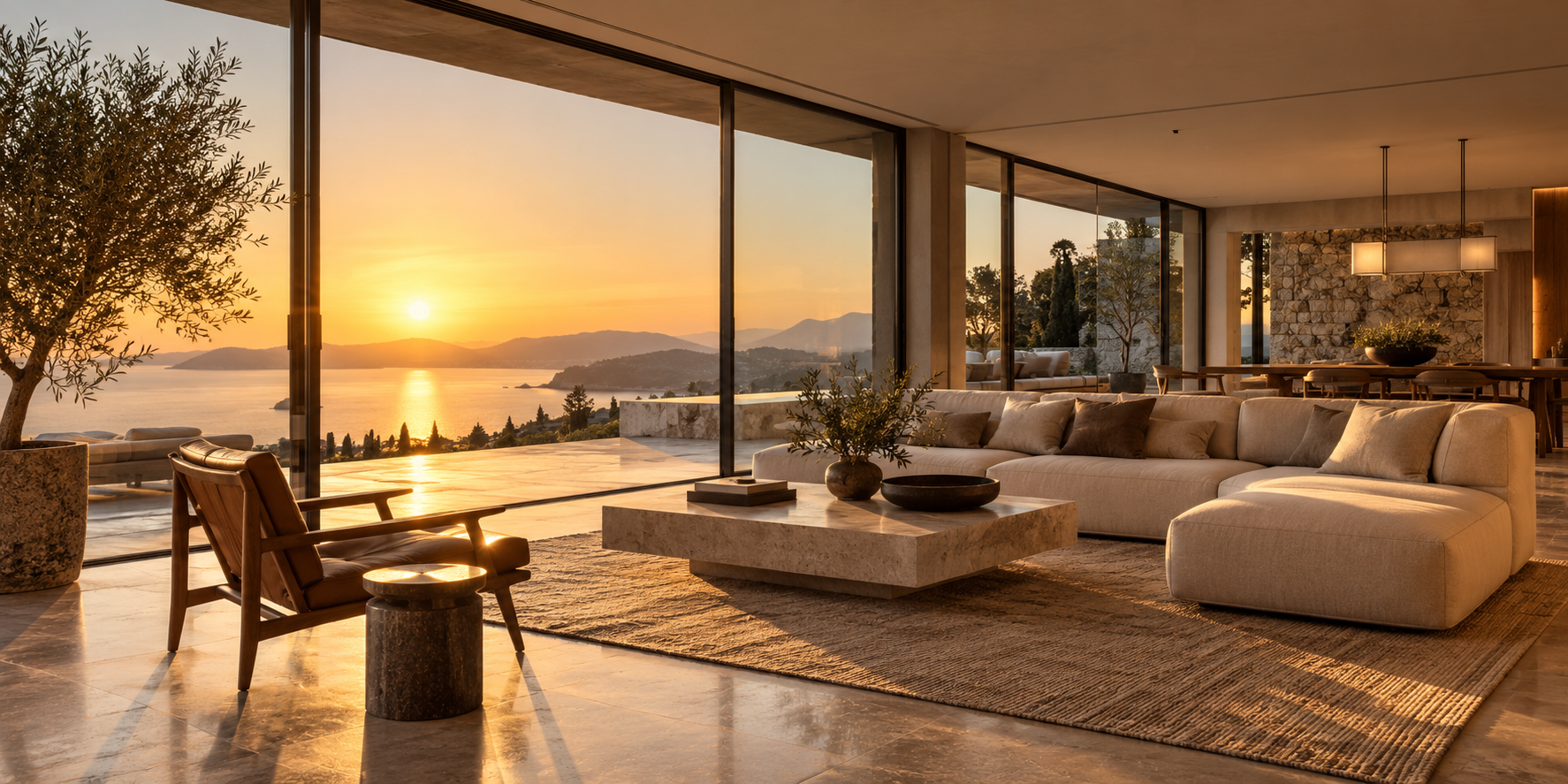
IMAGE_2: golden-hour interior
Original generation prompt
Create an 8-second luxury watch commercial by combining three reference images.

<IMAGE_0> is the exact watch product reference. Preserve its silver metal case, blue dial, hands, hour markers, crown placement and bracelet design.
<IMAGE_1> defines the beige marble pedestal and its surface texture.
<IMAGE_2> defines the warm golden-hour interior environment and lighting.

Place the exact watch from <IMAGE_0> upright on the marble pedestal from <IMAGE_1>, inside the setting from <IMAGE_2>.

0–2s: Extreme close-up of the watch dial. Fine metallic reflections reveal the watch's craftsmanship.

2–5s: The camera performs a slow cinematic orbit around the watch, revealing the case thickness, crown and metallic bracelet without altering their original geometry.

5–8s: The camera pulls back to reveal the watch resting on the marble pedestal, with warm sunlight and realistic shadows across the surface.

Maintain exact watch identity and material details throughout. Physically accurate metal reflections, consistent dial markings, realistic contact shadows and correct perspective.

Audio: Subtle mechanical ticking, luxurious ambient music and a gentle final musical accent.

No added logos, no invented text, no product redesign. 16:9.
What the output shows
The output opens close to the blue dial, reveals the crown, case, and bracelet, then pulls back to show the watch standing on a marble surface. All three major ingredients—the product, display, and warm interior—are represented.
The product is not an exact replica, however. The supplied watch has no date window, while the generated close-up introduces a date-window/magnifier feature. The example demonstrates multi-image composition and commercial shot design; it does not establish perfect product fidelity. Dial details, markers, crown placement, and bracelet structure need a separate check before use in a product advertisement.
Where this approach fits
Useful for product staging proposals and advertising concepts. Assign explicit roles to each reference and inspect the generated product details before treating the clip as a faithful product demonstration.
4. Lite text-to-video: washing a moon at 2 a.m.
An astronaut, a laundromat, and a moon share a single setting. The character stays nearly still, while the camera, drum, and water provide movement around one surreal focal point.
Mode: Lite text-to-video
Input: Text only; no reference images.
File: approximately 8 seconds · 848 × 480 · 24 fps · audio track present
Example video
Original generation prompt
An 8-second cinematic shot inside a quiet, slightly worn neighborhood laundromat at 2 a.m. Rain streaks the storefront windows. A single astronaut sits motionless on a plastic chair, holding an empty laundry basket.

Inside the oversized circular window of the central washing machine, a luminous three-dimensional moon slowly rotates like a heavy object in a wash cycle. Its craters remain clearly visible. A thin ring of water slides around the bottom of the drum, catching silver moonlight.

The camera makes one slow, deliberate push toward the machine. Its warm interior glow gently illuminates the astronaut's visor and the scratched tile floor, contrasting with the cool fluorescent ceiling lights.

Treat this impossible scene with understated photographic realism: restrained colors, tactile surfaces, subtle film grain, controlled highlights. The moon stays inside the drum throughout. One continuous shot, no cuts.

Audio: a low mechanical hum, water softly sloshing, distant rain. No dialogue or music.
What the output shows
The camera moves closer as the astronaut sits holding a basket. The bright moon remains inside the oversized drum, and its warm light reflects across the wet floor. The composition clearly conveys the idea of waiting for a moon to finish its wash.
The output also adds water spilling out of the drum and pooling on the floor, going beyond the prompt’s thin ring of water inside the machine. Changes on the moon’s surface are not sufficient on their own to verify physically consistent three-dimensional rotation. It establishes the visual idea while also showing how the model may elaborate on details.
Where this approach fits
A direction to explore for budget-conscious visual ideation, atmospheric shots, and social clips. This scene differs from the standard text-to-video example, so it is not a controlled comparison of their quality.
5. Lite image-to-video: giving a fashion portrait a sense of life
The selected starting reference matches the output’s ivory suit and terrace setting. The person, outfit, chair, wall, and sheer curtain are already defined, so the video focuses on small facial movements, hair, and fabric.
Mode: Lite image-to-video
Input: One starting image: a seated woman in an ivory suit on a terrace.
File: approximately 15 seconds · 736 × 400 · 24 fps · audio track present
Example video
Input images
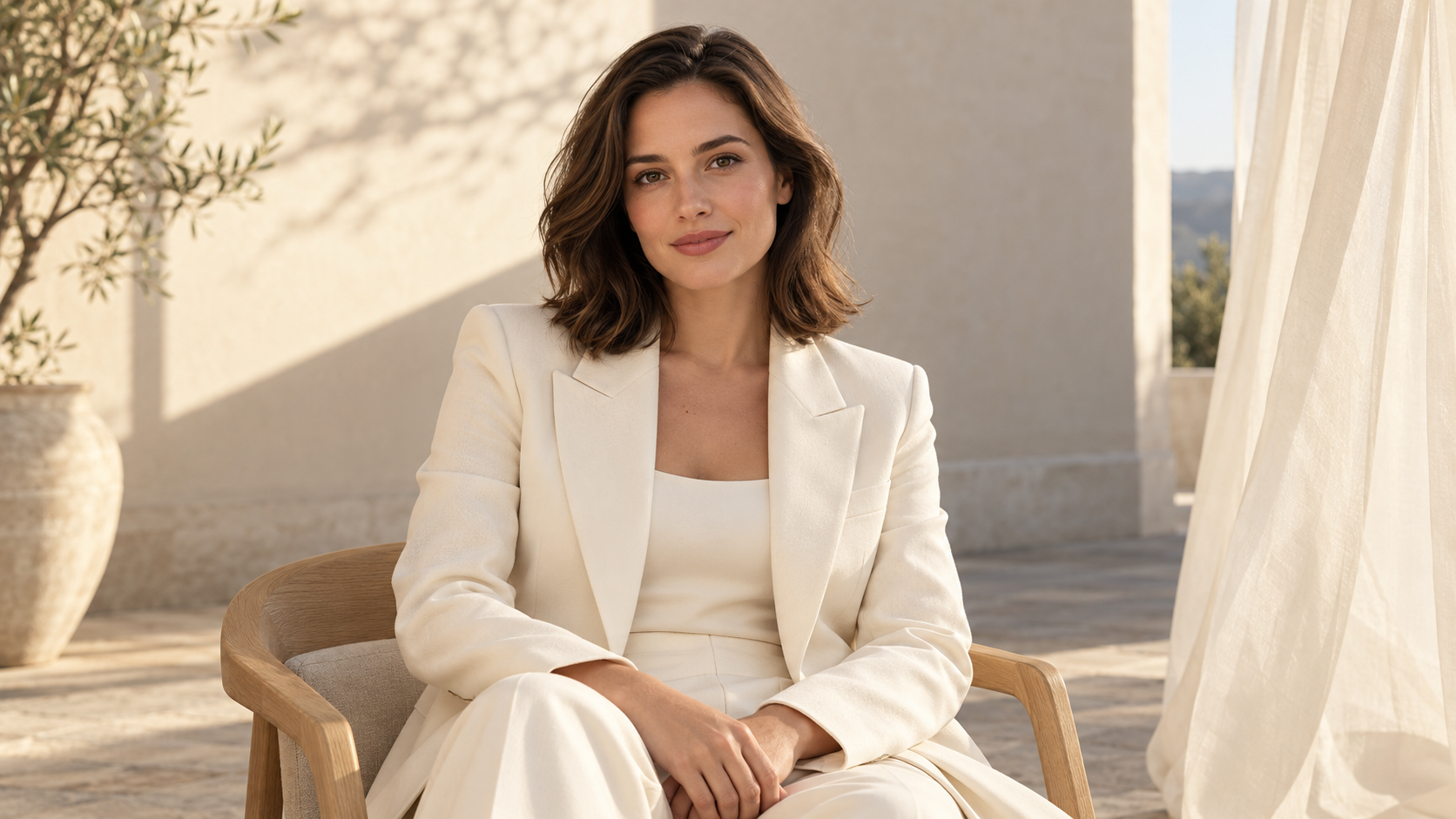
Starting frame: ivory-suit terrace portrait
Original generation prompt
Use the uploaded portrait as the first frame of a 15-second, 16:9 premium fashion talking-portrait film. Preserve the adult woman’s identity, hairstyle, ivory suit, seated pose, chair, architectural terrace, warm-white wall, sheer curtain, and original composition. Use a locked, eye-level medium shot. Do not change her outfit, location, or identity.

From 0 to 2 seconds, begin naturally from the input image. A gentle breeze moves a few strands of hair beside her ear and the translucent ivory curtain at the side of the frame. Keep the curtain near the image edge, never over her face. She blinks softly, with subtle, natural breathing through her shoulders.

From 2 to 12.5 seconds, she looks into the lens and speaks in composed, confident English: “A portrait can have a cinematic sense of life. I made this with Grok one point five Lite image-to-video on Kinovi.” Her delivery feels like a model sharing a creative moment after a shoot, not a loud sales pitch. Use clear diction and natural pauses. The visible woman speaks the entire line with accurate lip sync. Keep her hands relaxed and use only small eye and head movements; no waving.

From 12.5 to 15 seconds, after the dialogue, she briefly looks toward the sunlight at the side and returns to the camera with a faint smile. The hair and curtain continue moving gently. Hold the camera still and end on the complete fashion-portrait composition.

Champagne-colored side light, soft geometric shadows, realistic skin and suit fabric, and layered, restrained warm whites. No excessive beauty filtering, plastic skin, or strong lens flares. Clear speech, gentle wind, and a very quiet original sparse-piano bed beneath the voice. No off-screen narration, subtitles, magazine cover text, logos, or added on-screen lettering. Maintain stable facial features and clothing. No large head turns or curtain passing through the body.
What the output shows
The approximately 15-second clip remains centered on the seated subject. The ivory suit, chair, and warm-white setting remain recognizable in the sampled frames. Her mouth and expression change, the curtain shifts, and the ending returns to a quieter expression.
The clip illustrates subtle animation of an existing portrait. Recognizable clothing and surroundings do not establish frame-perfect identity preservation. Dialogue completion, pronunciation, and audiovisual synchronization also need their own playback check.
Where this approach fits
A useful setup for personal introductions, fashion portrait animation, and restrained talking-head content. A clear starting image and a small set of movements make the intended outcome easier to define.
4. Start creating on Kinovi
- Choose the input mode. Use text-to-video for an idea, image-to-video for an existing composition, or reference-to-video for multiple visual assets.
- Prepare the material. Make the starting image clear and the ending image intentional. For references, keep the upload order consistent and assign a role to each image in the prompt.
- Set duration and output quality. Leave time for both speech and camera movement. Check resolution, audio, supported framing settings, and the current price.
- Review what matters to the project. Check faces, hands, and lip movement for people; geometry, lettering, and materials for products; and the beginning, ending, and intermediate motion for transitions.
Open a generation option
- Standard text-to-video
- Standard image-to-video
- Standard reference-to-video
- Lite text-to-video
- Lite image-to-video
5. The takeaway: choose the workflow first, then evaluate the version
The five videos start from different kinds of material. The flower shop builds a scene from text; the studio clip connects two compositions; the watch commercial combines references; the moon laundromat explores a surreal concept at Lite's lower listed rate; and the fashion portrait extends an existing character and setting.
Start with the task. For multiple references or an ending frame, check the corresponding standard option. For text-based ideas or single-image animation, include Lite in your trials. Then compare outputs from the same task to decide whether the detail, visual quality, and cost meet your needs.
A convincing mood does not mean every instruction was followed, and an attractive commercial does not guarantee an accurate product. A useful workflow makes room for both creative generation and a careful review before publication.
6. Frequently asked questions
1. Are these five completely separate models?
A more useful way to navigate them is two versions—standard and Lite—with different input modes. Kinovi lists them as separate options so creators can choose by task.
2. How do image-to-video and reference-to-video differ?
Image-to-video starts from a specific composition; the standard option can also take an ending frame. Reference-to-video uses images to define subjects, products, or environments without automatically treating the first reference as a fixed opening frame. One extends a composition; the other combines visual sources.
3. Can the videos include speech and environmental audio?
All five options expose audio generation. Prompts can request dialogue, ambience, effects, and music, but speech completion, pronunciation, and synchronization should be checked in the output. Longer lines need enough runtime.
4. Do all modes support 1080p and starting/ending frames?
No. Standard and Lite text-to-video and image-to-video list 1080p, while reference-to-video tops out at 720p. Standard image-to-video is limited to 720p when an ending frame is used. Lite image-to-video accepts a single starting image, and its 1080p output is upscaled.
5. Is Lite faster or equal to standard in quality?
These examples do not include comparable generation-time records or matched tasks, so they do not establish speed or quality parity. This article also does not equate Lite with the Fast version in xAI's announcement.
6. How do I estimate cost?
Multiply the current per-second rate for the chosen option and resolution by the output duration. Check the applicable retry, failure, and promotional terms. A sample video file alone does not establish the amount charged for its generation.
7. Can references guarantee an unchanged product?
This example does not support that guarantee. The watch output adds a date-window/magnifier feature absent from the reference. For product marketing, inspect the dial, lettering, geometry, and structural details before approving the result.
8. Will prompt timing instructions be followed to the exact second?
Time ranges communicate pacing, but they are not a precise editing timeline. The actual generation settings determine available runtime, and the model may reveal a backdrop early or elaborate on an effect. Prioritize essential speech and actions.
Sources and verification notes
Platform specifications and rates were checked on October 21, 2026. Model assignments, prompts, and input images follow the supplied case material; output durations and dimensions were read from the files. The original videos have not been edited, dubbed, or subtitled for this article. The examples illustrate workflows rather than establish an overall model ranking.
Related articles
More to try
Related models
Midjourney · image model
Midjourney V8
Latest Midjourney model with photorealistic quality and creative control.
$0.0565/4 images
ByteDance · video model
Seedance 2.0
Next-generation AI video model by ByteDance. Combines Fast and Pro modes for high-quality video generation.
$0.0707/s
Alibaba · video model
HappyHorse 1.0
HappyHorse 1.0 is Alibaba's high-quality video generation model on Kinovi, supporting text-to-video, image-to-video, reference-image video, and video editing modes.
$0.0801/s