Seedream 5.0 Pro Prompt Guide: Create & Edit Production Images
Learn how to use Seedream 5.0 Pro for controlled image editing, multilingual text, product visuals, posters, and reference-guided generation.
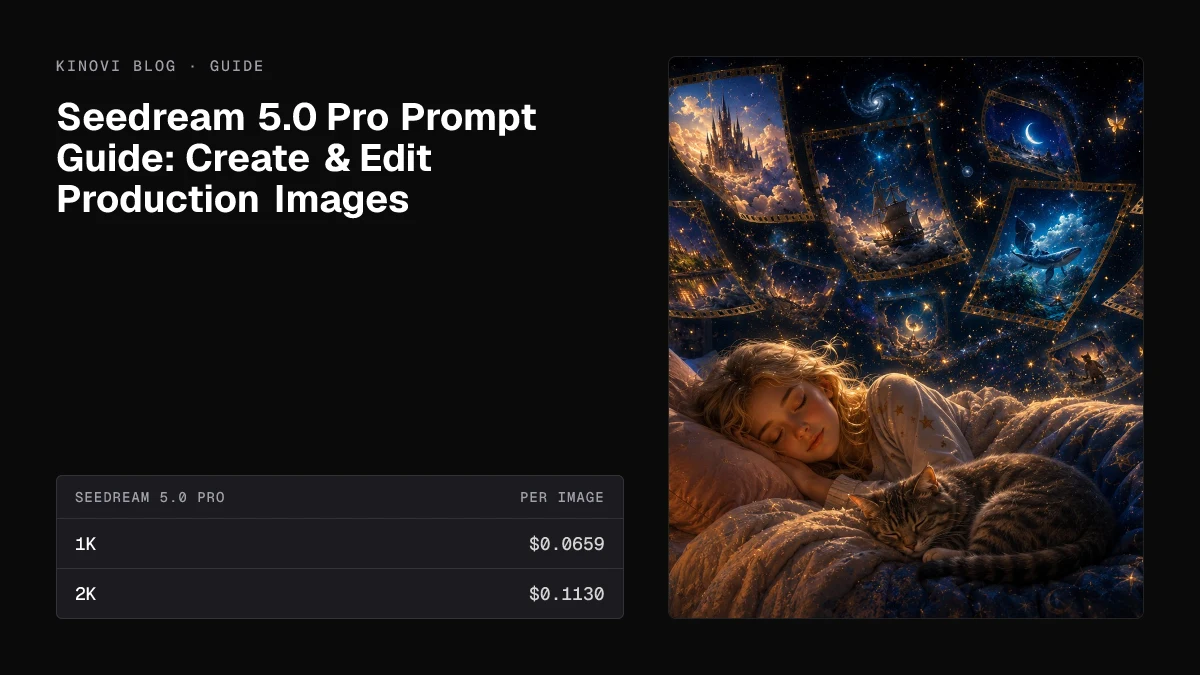
Seedream 5.0 Pro is built for a part of AI image generation that matters after the first impressive result: control.
Generating an attractive image is useful, but production work rarely ends there. A product team may need to replace one object without changing the composition. A marketer may need the same campaign visual in several languages. A designer may want to revise a headline while preserving the subject, lighting, and background. In these workflows, repeatedly regenerating the entire image wastes time and introduces new inconsistencies.
Seedream 5.0 Pro is designed for this iterative process. It combines text-to-image generation, reference-guided creation, controlled image editing, dense visual composition, and multilingual text rendering in one model. On Kinovi, it supports up to 14 reference images and offers 1K and 2K output.
This guide explains what Seedream 5.0 Pro is best at, how to structure prompts for it, and how to use it for posters, product images, infographics, multilingual campaigns, and targeted edits.
The Short Version
Use Seedream 5.0 Pro when you need to:
- create posters, advertisements, slides, or infographics with readable text
- revise one part of an image while keeping the rest stable
- combine visual direction from multiple reference images
- maintain a product, character, or campaign style across variations
- generate localized creative assets in different languages
- move from an initial concept to a more controlled final design
The most important prompting principle is simple:
Tell the model both what to change and what it must preserve.
Instead of writing only:
Change the bottle to red.
Use:
Change only the bottle from blue to deep red. Preserve the bottle shape, label layout, camera angle, lighting, shadows, background, and every other element exactly as they are.
That second instruction gives the model a clear editing boundary.
What Is Seedream 5.0 Pro?
Seedream 5.0 Pro is ByteDance's control-focused AI image generation and editing model. It supports both new image creation and reference-guided editing, making it suitable for workflows where the first generation is a draft rather than the final asset.
Its practical strengths include:
- text-to-image generation
- image editing with natural-language instructions
- multiple-reference workflows
- localized or regional changes
- preservation of unedited regions
- complex poster and infographic composition
- small-text rendering at 1K and 2K
- native text generation in 14 languages
The model is therefore most useful when an image has a job to do. It is not limited to producing attractive artwork. It can help create marketing graphics, product presentations, editorial layouts, social advertisements, instructional visuals, and campaign variations that need recognizable structure.
What Seedream 5.0 Pro Is Best At
1. Controlled Image Editing
Many image models can respond to an edit request, but the difficult part is preventing unnecessary changes. A simple request to replace a headline may also alter the background, subject, color palette, or composition.
Seedream 5.0 Pro is best used with explicit preservation instructions. Describe the target region, the required change, and the elements that must remain untouched.
For example:
Replace only the headline at the top of the poster with “SUMMER STARTS HERE.” Use bold condensed white sans-serif lettering. Keep the model, clothing, pose, product, orange gradient background, logo placement, lighting, and all other text unchanged.
This structure is useful for:
- changing product colors
- replacing poster headlines
- correcting labels
- adjusting clothing or accessories
- removing unwanted objects
- changing backgrounds without redesigning the subject
- producing campaign variations from an approved master image
2. Posters and Text-Heavy Designs
Text rendering is one of the clearest differences between casual image generation and practical design generation. A visually strong poster becomes unusable if its headline is misspelled, its hierarchy is unclear, or supporting copy turns into random symbols.
Seedream 5.0 Pro is designed to handle readable small text and dense layouts at both 1K and 2K. It can be used for:
- event posters
- social media advertisements
- product launch graphics
- menu and price-card concepts
- editorial covers
- presentation slides
- simple charts and infographics
- campaign key visuals
For text-heavy work, provide the exact copy in quotation marks and explain the hierarchy. Do not simply ask for “a poster with some marketing text.”
3. Multilingual Campaign Assets
Seedream 5.0 Pro supports native text rendering in 14 languages. This makes it useful for localized creative production, especially when the same visual direction must be adapted for different markets.
A strong localization prompt should separate the visual elements from the text elements:
Keep the entire poster composition, product image, lighting, logo position, colors, and spacing unchanged. Replace only the English headline “CREATE WITHOUT LIMITS” with the Japanese headline “限界を超えて創造する”. Preserve the same visual hierarchy and align the Japanese text naturally within the existing headline area.
Even when the model can render the language, every final marketing asset should still be reviewed by a fluent speaker. Language support improves the creation process, but it does not replace copy review, brand review, or legal approval.
4. Multiple Reference Images
On Kinovi, Seedream 5.0 Pro supports up to 14 reference images in a single request. Multiple references can help define different parts of the desired output:
- one image for the subject or product
- one for the composition
- one for lighting
- one for the color palette
- one for typography direction
- several images for character or object consistency
The references should have distinct roles. Uploading many unrelated images without explaining how each should be used can make the direction less clear.
A better prompt is:
Use reference image 1 for the exact product shape and label. Use reference image 2 for the three-quarter camera angle and tabletop composition. Use reference image 3 only for the warm sunset lighting and amber color palette. Do not copy objects or text from references 2 and 3.
5. Product and Commercial Images
Product images require more than visual appeal. The product must remain recognizable, proportions should be believable, labels should not drift, and the lighting must support the intended material.
Seedream 5.0 Pro can be used to build:
- product hero images
- e-commerce campaign concepts
- packaging presentations
- lifestyle scenes
- seasonal campaign variations
- advertising storyboards
- social media product cards
Reference-guided editing is particularly useful here because an approved product image can remain the foundation while the environment, styling, or campaign copy changes around it.
How to Write a Strong Seedream 5.0 Pro Prompt
A useful prompt does not need to be excessively long. It needs to remove ambiguity. The following six-part structure works for most generation tasks.
1. State the Asset Type
Start by explaining what you are making:
- a vertical fashion advertisement
- a clean e-commerce product photograph
- a cinematic editorial cover
- a bilingual conference poster
- a data-rich infographic
- a square social media launch graphic
The asset type helps establish the expected composition and level of polish.
2. Define the Main Subject
Describe the subject precisely. Include its position, scale, pose, material, or product characteristics when relevant.
Weak:
A perfume bottle.
Better:
A transparent rectangular perfume bottle with a brushed silver cap, centered in the lower third, photographed at a slight three-quarter angle.
3. Describe the Composition
Explain how the visual should be organized:
- centered or asymmetric layout
- close-up, medium shot, or wide shot
- empty space reserved for copy
- foreground and background relationship
- subject position within the frame
- intended aspect ratio
Composition instructions are especially important for advertisements because the image often needs space for headlines, logos, or calls to action.
4. Specify Lighting, Materials, and Style
Use concrete visual language rather than broad quality words.
Instead of:
Make it premium and beautiful.
Try:
Soft directional studio lighting from the upper left, subtle rim light around the glass edges, realistic reflections, restrained black-and-silver palette, luxury editorial product photography.
5. Provide Exact Text and Hierarchy
Put required copy in quotation marks and explain where it belongs.
Headline at the top: “DESIGNED FOR MOTION” in bold uppercase white sans-serif. Supporting line below: “Lightweight comfort. All-day performance.” in smaller regular-weight text. Place “SHOP NOW” inside a black rounded button at the bottom right.
Shorter copy is generally easier to control. If the design contains several paragraphs, consider generating the visual foundation first and adding long body copy with a conventional design tool.
6. State the Constraints
Constraints are essential for editing prompts. List what must not change.
Useful phrases include:
- change only the selected object
- keep the composition unchanged
- preserve the subject's identity and pose
- do not alter the logo
- keep all existing text except the headline
- preserve the original camera angle and shadows
- do not add any new objects
Six Seedream 5.0 Pro Prompt Examples
The following prompts are designed as starting points. Replace the products, copy, colors, and formats with your own campaign requirements.
Example 1: Product Hero Image
Create a premium e-commerce hero image for a transparent skincare serum bottle with a matte white dropper. Place the bottle upright on a pale stone pedestal in the center of the frame. Use soft morning light from the left, realistic glass refraction, delicate shadows, and a clean ivory background with subtle botanical silhouettes. Leave generous negative space in the upper third for campaign copy. Minimal luxury beauty photography, realistic materials, accurate bottle proportions, no extra products, no decorative text.
Why it works: the prompt defines the product, surface, lighting, composition, negative space, and exclusions.
Example 2: Vertical Advertising Poster
Create a polished 4:5 advertising poster for a futuristic silver running shoe. Show the shoe floating at a dynamic three-quarter angle over a deep cobalt background with controlled motion trails and a soft spotlight. Headline at the top: “MOVE BEYOND” in bold condensed white sans-serif. Supporting text below: “Built for speed, designed for every day.” Place a small “DISCOVER NOW” call to action at the bottom. Maintain clear typographic hierarchy, realistic shoe materials, sharp edges, balanced spacing, and a premium sports campaign aesthetic.
Why it works: the model receives exact copy, typography direction, object placement, and the intended campaign style.
Example 3: Multilingual Campaign Adaptation
Using the supplied English campaign poster as the reference, preserve the product, person, pose, background, lighting, logo, color palette, spacing, and overall layout. Replace only the headline “FIND YOUR NEXT IDEA” with the Spanish headline “ENCUENTRA TU PRÓXIMA IDEA”. Keep the same headline area and visual hierarchy. Adjust line breaks naturally for Spanish. Do not change any other text or visual element.
Why it works: the edit is narrowly scoped and preservation requirements are explicit.
Example 4: Data-Rich Infographic
Design a clean vertical infographic titled “THE ANATOMY OF A HIGH-CONVERTING VIDEO AD”. Use a white background, dark navy text, and coral accent colors. Organize the information into five numbered sections connected by a subtle vertical line: “1. Hook”, “2. Problem”, “3. Product”, “4. Proof”, and “5. Call to Action”. Add one simple flat icon beside each section. Use large readable headings, short supporting labels, consistent spacing, and a modern SaaS report style. Do not add statistics or copy that are not provided.
Why it works: the information architecture is defined, while the instruction prevents invented data.
Example 5: Character and Style Consistency
Use the supplied character references to create a new cinematic scene featuring the same woman. Preserve her facial identity, short black hair, red jacket, silver earrings, and overall body proportions. Place her inside a rainy neon-lit train station at night, looking over her shoulder toward the camera. Medium shot, 50mm lens feel, blue and magenta reflections on the wet floor, realistic skin texture, restrained cinematic color grading. Do not redesign her clothing or add accessories.
Why it works: the prompt distinguishes identity elements that must remain stable from the environment that may change.
Example 6: Targeted Product Edit
Edit only the beverage can in the reference image. Change the can body from matte black to brushed silver and replace the central flavor label with “YUZU LIME”. Preserve the exact can shape, size, position, condensation, highlights, shadows, hand placement, background, camera angle, and every other object. Keep the existing logo unchanged. Do not alter the composition.
Why it works: it identifies the editable region and protects the rest of the approved image.
A Better Editing Workflow: Draft, Lock, Then Refine
The most efficient way to use Seedream 5.0 Pro is not to request everything perfectly in one prompt. Treat the image as a sequence of controlled decisions.
Step 1: Generate the Visual Direction
Start with the subject, composition, lighting, and general style. Keep text limited to the main headline or omit it during the first draft.
At this stage, ask:
- Is the composition strong?
- Is the subject recognizable?
- Does the lighting support the product?
- Is there enough space for copy?
Step 2: Select and Lock the Strongest Draft
Once the overall direction works, use the selected image as a reference. State which elements are now fixed:
Preserve the product, camera angle, pedestal, lighting, shadows, and background composition in all future edits.
This turns the selected draft into a visual foundation.
Step 3: Refine One Variable at a Time
Make targeted changes instead of rewriting the whole prompt:
- adjust the headline
- change one product color
- reduce a background element
- move a call to action
- localize the copy
- modify one material or lighting detail
Changing one variable at a time also makes it easier to evaluate whether an edit improved the image.
Step 4: Move to 2K for the Final Asset
Use 1K for drafts and rapid direction testing. Use 2K when typography, product details, and the final presentation matter more.
On Kinovi, the current rates are:
| Resolution | Price | Best For |
|---|---|---|
| 1K | $0.0560 per image | Drafts, composition tests, early variations |
| 2K | $0.0960 per image | Text-heavy designs, product detail, final assets |
These are today's discounted rates. The list prices are $0.0659 (1K) and $0.1130 (2K), so use those figures if you are budgeting a long-running project. The number of reference images does not change the per-image price.
Common Seedream 5.0 Pro Prompting Mistakes
Asking for “Better” Without Defining Better
Words such as “better,” “professional,” and “premium” are subjective. Translate them into visible decisions: more negative space, softer lighting, a limited palette, realistic materials, stronger hierarchy, or cleaner typography.
Editing Without Preservation Instructions
If you request a change without explaining what must stay fixed, the model has more freedom to reinterpret the entire image. Always define the boundary of the edit.
Giving References Without Assigning Roles
Multiple references are useful only when the model understands why each one is present. Explain which reference controls the subject, composition, lighting, palette, or typography.
Adding Too Much Text at Once
AI text rendering has improved, but an image model is not a replacement for a complete desktop publishing system. Prioritize headlines, short labels, calls to action, and compact infographic text. Add long legal copy or paragraphs later with a design tool.
Combining Conflicting Styles
A prompt asking for minimalist editorial design, maximalist cyberpunk detail, soft natural light, harsh neon light, and five different color palettes gives the model competing objectives. Choose one primary visual direction and use references that support it.
Changing Too Many Variables in One Edit
If you simultaneously change the subject, background, copy, camera angle, color palette, and lighting, you are effectively requesting a new generation. Make smaller edits when consistency matters.
Seedream 5.0 Pro vs General-Purpose Image Models
Seedream 5.0 Pro should not be selected only by asking which model makes the most attractive single image. Its advantage is the workflow it supports.
| Requirement | Why Seedream 5.0 Pro Fits |
|---|---|
| Controlled revisions | Natural-language edits can target one part of an existing image |
| Campaign variations | Approved composition can be reused while copy, color, or environment changes |
| Text-heavy creative | Supports small text, poster layouts, and multilingual rendering |
| Reference-driven work | Up to 14 reference images can guide different visual elements |
| Draft-to-final workflow | 1K supports iteration, while 2K supports more detailed final assets |
For free-form ideation, almost any capable image model can produce interesting directions. Seedream 5.0 Pro becomes more valuable when the image needs revisions, consistency, readable copy, or a repeatable production process.
Who Should Use Seedream 5.0 Pro?
Designers
Use it to explore layouts, revise visual elements, produce campaign directions, and turn references into more controlled drafts.
Marketing Teams
Use it for product launches, social advertisements, localized campaign variations, event graphics, and rapid creative testing.
E-Commerce Teams
Use it to place products into new environments, test seasonal concepts, build product cards, and create multiple campaign treatments from existing assets.
Content Teams
Use it for article covers, YouTube concepts, editorial graphics, infographics, and social media visuals that need readable headlines.
Developers and Creative Platforms
Use the Seedream 5.0 Pro API to integrate text-to-image and reference-guided editing into applications, batch workflows, or internal creative tools. The model API ID on Kinovi is seedream-5.0-pro.
How to Try Seedream 5.0 Pro on Kinovi
You can use Seedream 5.0 Pro on Kinovi for both new image generation and reference-guided editing.
For a new image:
- Open the Seedream 5.0 Pro model page.
- Enter a structured prompt describing the asset, subject, composition, style, text, and constraints.
- Choose 1K for drafts or 2K for final-detail work.
- Generate several focused variations instead of changing every variable at once.
For an edit:
- Upload the approved or selected source image.
- Identify exactly what should change.
- List the elements that must remain unchanged.
- Review the result closely, especially text, logos, product details, hands, and small visual elements.
- Continue with narrow follow-up edits until the asset is ready.
Developers can also use the API examples and schema available on the model page to add Seedream 5.0 Pro to an application or automated creative workflow.
Frequently Asked Questions
What makes Seedream 5.0 Pro different?
Its main strength is controlled design work. It combines new image generation with reference-guided editing, preservation instructions, dense layouts, and multilingual text rendering. This makes it useful for images that need to be revised rather than generated once and discarded.
How many reference images can I use?
Seedream 5.0 Pro supports up to 14 reference images per request on Kinovi. Assign a clear purpose to each reference for the most predictable results.
Should I choose 1K or 2K?
Use 1K for drafts, layout exploration, and lower-cost variations. Use 2K for final images, text-heavy posters, product details, and assets that will be displayed at a larger size.
Can Seedream 5.0 Pro generate readable text?
It is designed to render readable small text at 1K and 2K and supports native rendering in 14 languages. Results should still be proofread before publication, especially for brand names, legal copy, prices, and multilingual campaigns.
Can it edit only one part of an image?
Yes. For better control, identify the exact target and state what must remain unchanged. Narrow editing instructions are usually more reliable than requesting several major changes at once.
Is it suitable for product photography?
It can create product concepts and edit reference-based product visuals. Final assets should be checked for label accuracy, proportions, materials, reflections, and brand consistency before commercial use.
How much does Seedream 5.0 Pro cost on Kinovi?
The current rate is $0.0560 per 1K image and $0.0960 per 2K image, discounted from list prices of $0.0659 and $0.1130. Refer to the model page for the latest pricing.
Conclusion
Seedream 5.0 Pro is most useful when AI image creation becomes an editing process rather than a one-prompt experiment.
Its combination of reference-guided control, preservation instructions, multilingual text, poster-friendly composition, and 1K/2K output makes it a practical model for campaign design, product imagery, localized creative, infographics, and other production-oriented work.
The best workflow is to generate a strong visual direction, lock the approved elements, and then refine one variable at a time. Tell the model exactly what should change, what should stay fixed, and how the final asset will be used.
Try Seedream 5.0 Pro on Kinovi and start with the prompt examples in this guide.
Related Models and Further Reading
- Explore Seedream 5.0 Pro on Kinovi.
- Browse other AI image models available on Kinovi.
- Use the API reference on the model page to integrate
seedream-5.0-prointo your own application or creative workflow.
Related articles
More to try
Related models

ByteDance · image model
Seedream 5.0 Pro
Text-to-image, reference-guided editing, and multilingual text rendering for design-grade image work.
$0.0527/image
NanoBanana · image model
NanoBanana 2
Fast, high-quality AI image generation with creative control and photorealistic output.
$0.0707/image
OpenAI · image model
GPT Image 2
Advanced AI image generation and editing by OpenAI. GPT Image 2 excels at photorealism, text rendering, complex compositions, and precise instruction following.
$0.0100/image