Remove Image Backgrounds Instantly with AI
Turn any photo into a clean, transparent image in one click. Isolate products, people, and subjects with precise edges — no manual selection, no design skills required.
Create
Idle
Result
Submit a request to watch this generation complete here.
No response yet
Submit a request to watch this generation complete here. Past runs live in History.
Free AI Background Remover – Remove Image Backgrounds in Seconds
Remove image backgrounds automatically with Kinovi's AI background remover. Whether you need a transparent PNG for your online store, a clean headshot for your resume, or a quick cutout for social media, Kinovi makes it effortless. No manual pixel selection, no clipping paths, no design experience required.
What You Can Create
- Transparent PNGs – Isolate any subject and export a background-free image to layer anywhere.
- Clean product photos – Make your products pop on white or transparent backgrounds for marketplaces, catalogs, and ads.
- Professional headshots – Replace distracting office or outdoor backgrounds with a neutral studio look.
- Marketing assets – Remove backgrounds for channel art, social media posts, banners, and thumbnails.
- Creative composites – Cut out people, animals, and objects to place them into new scenes.
How It Works
Start with a photo you already have, or generate a new image using Kinovi's Text to Image tool. Then use the AI background remover in the AI Image Editor. The model detects the main subject in the image, separates it from the background, and produces a clean cutout in seconds.
You can fine-tune the result to keep transparency, swap in a solid color, or add a brand-new background. Everything happens online in your browser – there is no complicated software to install.
Use Cases
- E-commerce sellers – Remove backgrounds from product photos to meet marketplace requirements and boost click-through rates.
- Job seekers and professionals – Create polished, consistent headshots for CVs, LinkedIn, and corporate directories.
- Social media managers – Extract people or objects to create standout posts, stories, and reels.
- Graphic designers – Save hours of masking time and get clean layers for posters, flyers, and web designs.
- Marketers – Prepare ad creatives with transparent backgrounds for flexible placement across platforms.
Why Use Kinovi
- Fast and accurate – Get clean cutouts in seconds, even around hair, fur, and intricate edges.
- No design skills needed – The AI does the heavy lifting, so you can focus on the creative part.
- Part of a complete creation suite – Go beyond background removal. Generate images, create videos with a prompt, and edit everything in one place.
- Free to try – Use the AI background remover online for free. Make your image look the way you want.
Example Gallery
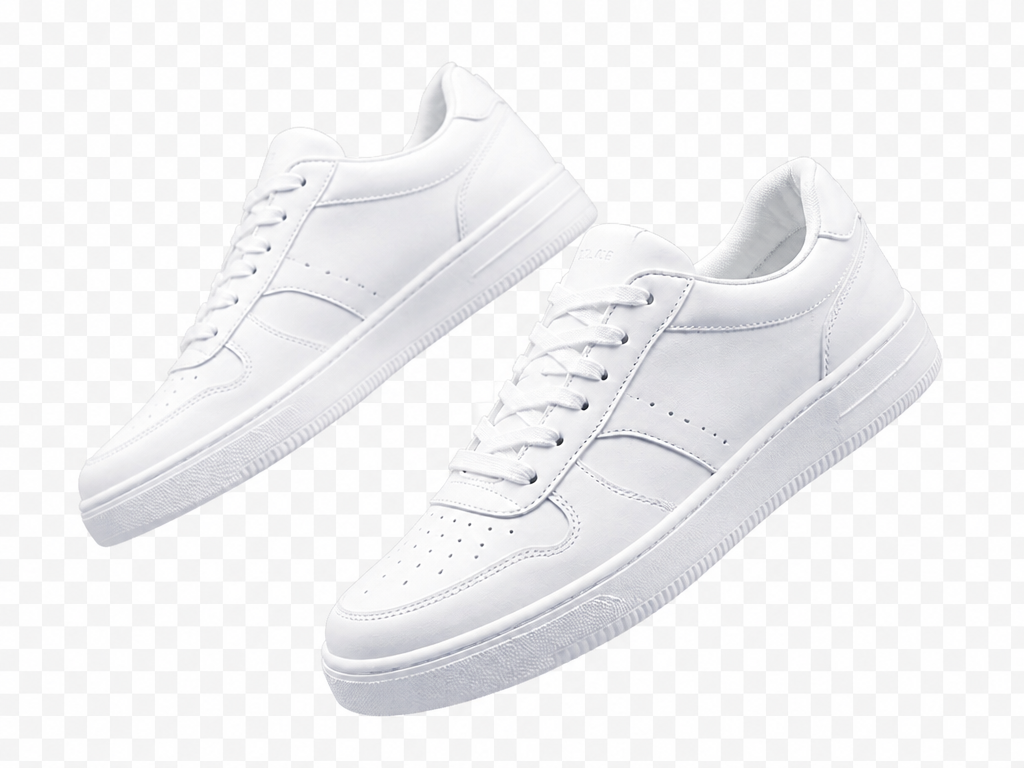
Background removed in one click — ready for marketplaces, ads, or catalogs.
After removing the background, these sneakers are isolated and ready for any storefront, ad, or catalog. The clean cutout keeps every stitching detail intact.

The same portrait on a clean white background — perfect for CVs and ID photos.
This portrait was retouched from a busy office background to a clean white studio background, keeping natural skin tones and sharp details. Ideal for professional profiles and ID photos.
FAQ
Do I need any design experience to remove a background?
No. Kinovi automatically detects the subject and removes the background for you. You only need to upload or generate an image and preview the result.
What image formats can I use?
You can work with common image formats like JPG, PNG, and WebP. After the background is removed, you can export a transparent PNG to use anywhere.
Will tricky edges like hair and fur look clean?
Yes. The AI model is trained to recognize complex edges, so it preserves hair strands, fur, leaves, and other fine details better than older tools.
Can I replace the background after I remove it?
Absolutely. You can keep a transparent background, choose a solid color, or generate a new scene around your subject. The Kinovi AI Image Editor gives you full control.
Related Tools and Models
- AI Image Editor – Use background removal, retouching, and creative edits in one place.
- AI Product Photo – Create professional product images automatically.
- Text to Image – Generate the exact image you want from a description.
- GPT Image 2 – The advanced image model that powers high-quality visual generation and editing.
- Seedance 2.0 Mini – Turn your edited images into short videos with AI.
- AI Avatar Generator – Create an avatar when you need a consistent persona across platforms.